
What you need
- VS Code 1.104 or later.
- A Microsoft 365 account with a Copilot licence. If you do not have one, the service answers with a licence error and the extension tells you so; ask your Microsoft 365 admin.
- Chrome, Edge or Firefox 128+ for the browser extension (or Tampermonkey, see step 6).
The pack has two pieces. The VS Code extension adds the chat, the models and the editor actions. The browser extension reads the session token the Microsoft 365 Copilot web app already uses and sends it to VS Code, so you never copy and paste a token.
1. Install the VS Code extension
Pick one:
- VS Marketplace: open the extension page and click Install, or run
ext install m365-copilot-vscode.m365-copilot-vscodein the Quick Open box (Ctrl+P). - From a file: download the
.vsixfrom the latest release, then in VS Code open the Extensions view, click the…menu and choose Install from VSIX….
When it is installed, an M365 item appears in the status bar (bottom right). Its icon tells you at a glance whether VS Code has a valid token.
2. Install the browser extension
Download it from the downloads page and load it:
- Chrome: unzip the file, open
chrome://extensions, turn on Developer mode, click Load unpacked and choose the unzipped folder. - Edge: the same, from
edge://extensions. - Firefox: open the signed
.xpifile in Firefox. Without it, go toabout:debugging→ This Firefox → Load Temporary Add-on and choose the.zip(Firefox removes it when it closes).
3. Connect with one message
- Open Microsoft 365 Copilot and sign in.
- Send any message in the chat.
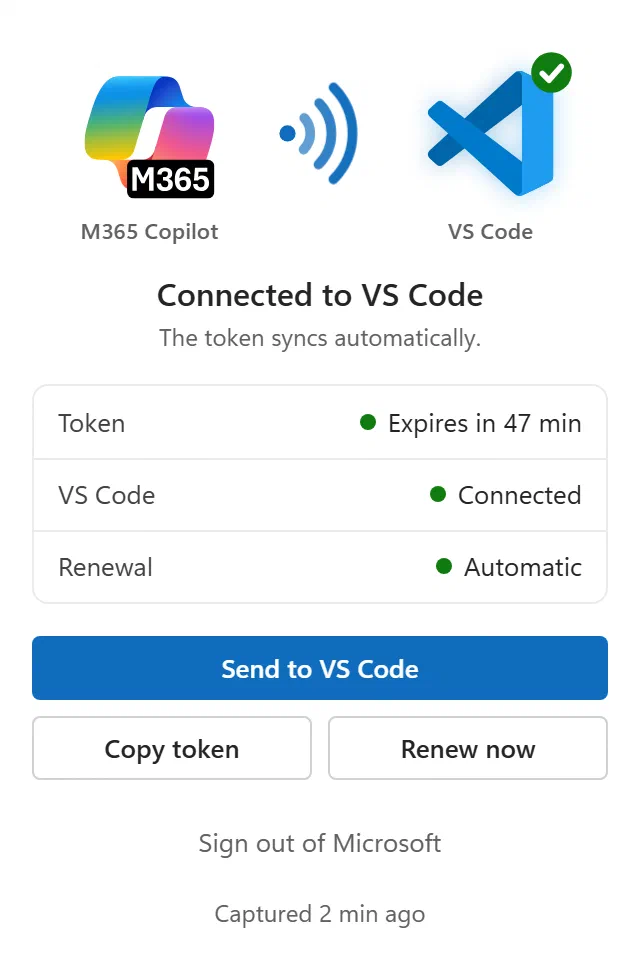
- Open the extension’s popup. When everything is green, VS Code already has your token.
4. Chat with @m365
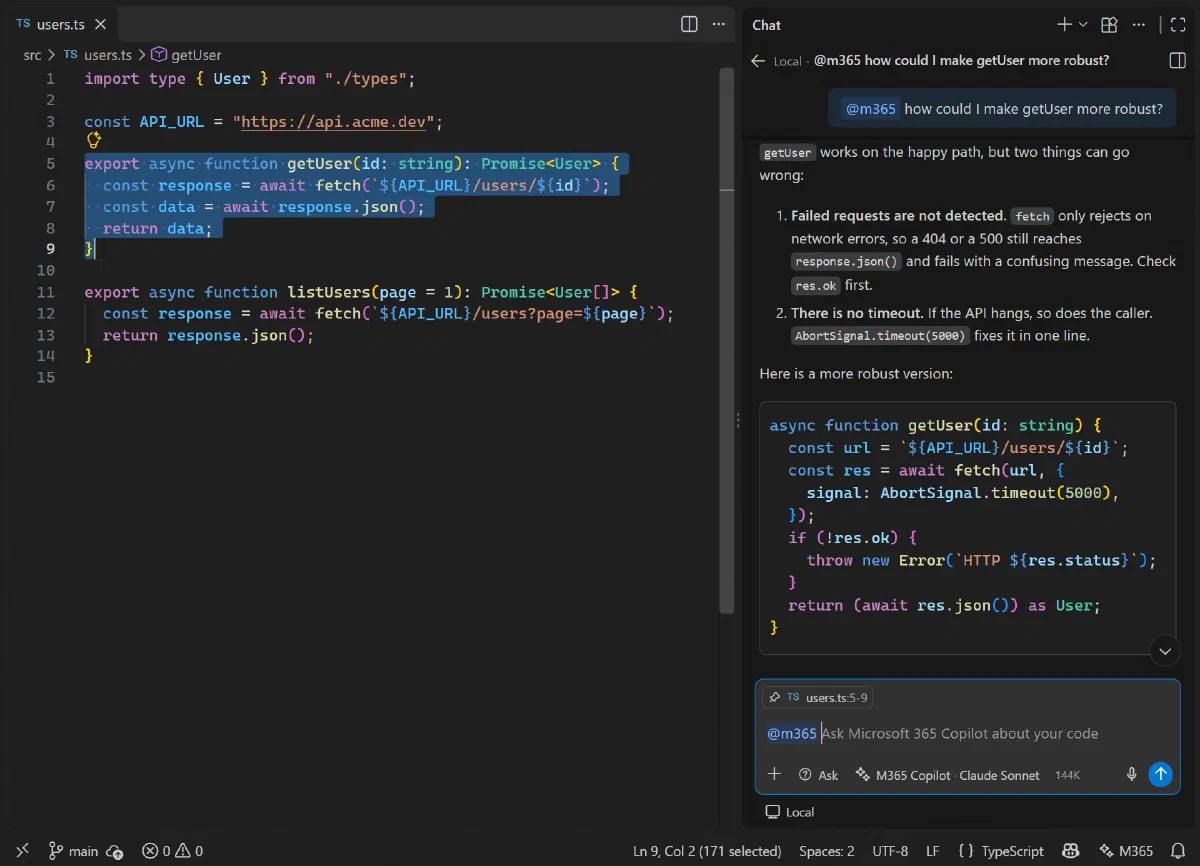
Open the VS Code chat and type @m365 followed by your question. M365 Copilot always answers, whichever model is selected in the picker. Select code first and it travels with the question.
| Command | What it does |
|---|---|
@m365 /explain | Explains the selected code, or the function at the cursor. |
@m365 /fix | Fixes the problems in that code and applies the fix with Keep / Undo. |
@m365 /doc | Adds documentation comments. |
@m365 /tests | Writes unit tests with the framework the project already uses. |
@m365 /terminal | Explains the last command of the active terminal and how to fix it. |
Using it as a model
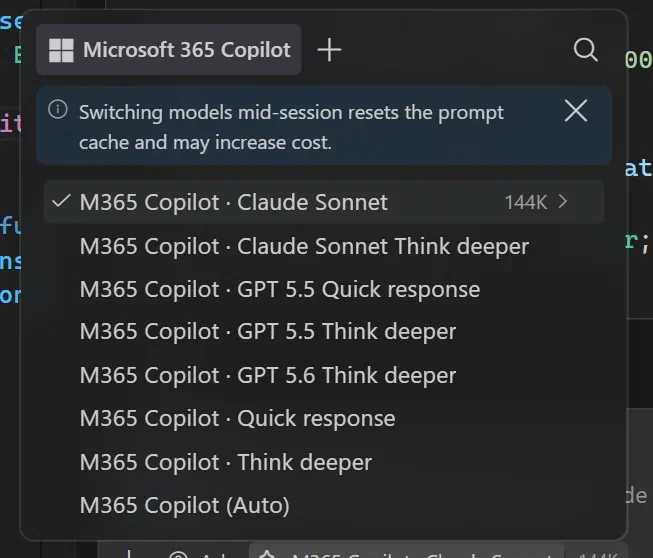
If you prefer to pick M365 Copilot as a model (for example in Agent mode), show it first because it does not appear at the start: in the model picker click the gear, choose Other models and scroll to the M365 Copilot entries. You can pin them.
5. Edit, review and commit from the editor
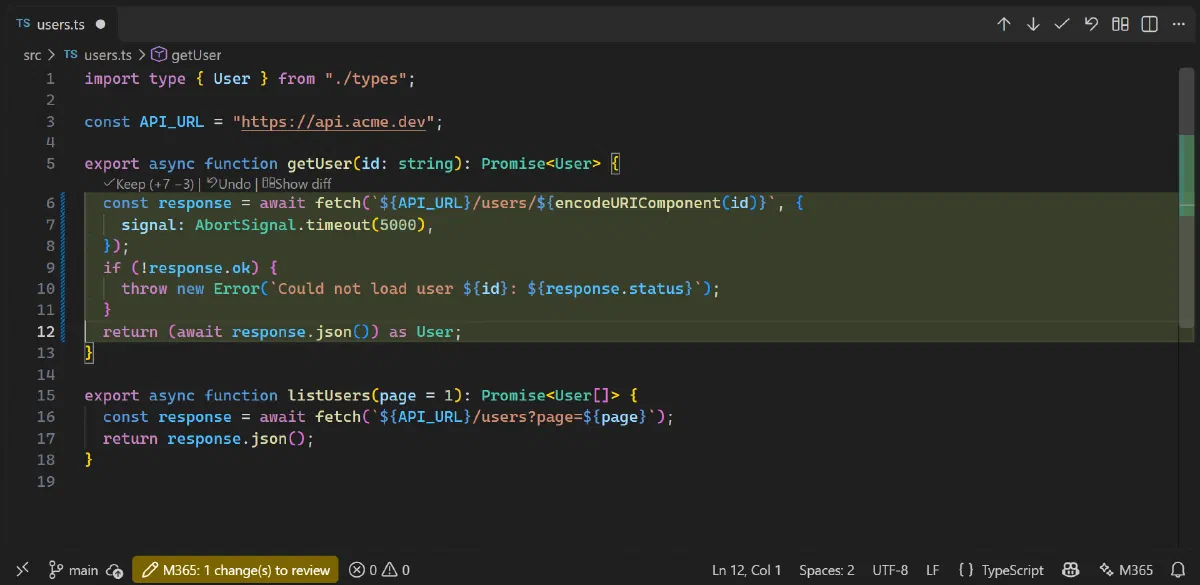
- Edit in place: select code (or put the cursor in a function), press
Ctrl+Shift+Alt+Iand type what should change. The result lands under Keep / Undo, block by block. - Right-click → M365 Copilot: edit, explain, ask, review, fix, document or generate tests for the selected code.
- Lightbulb (
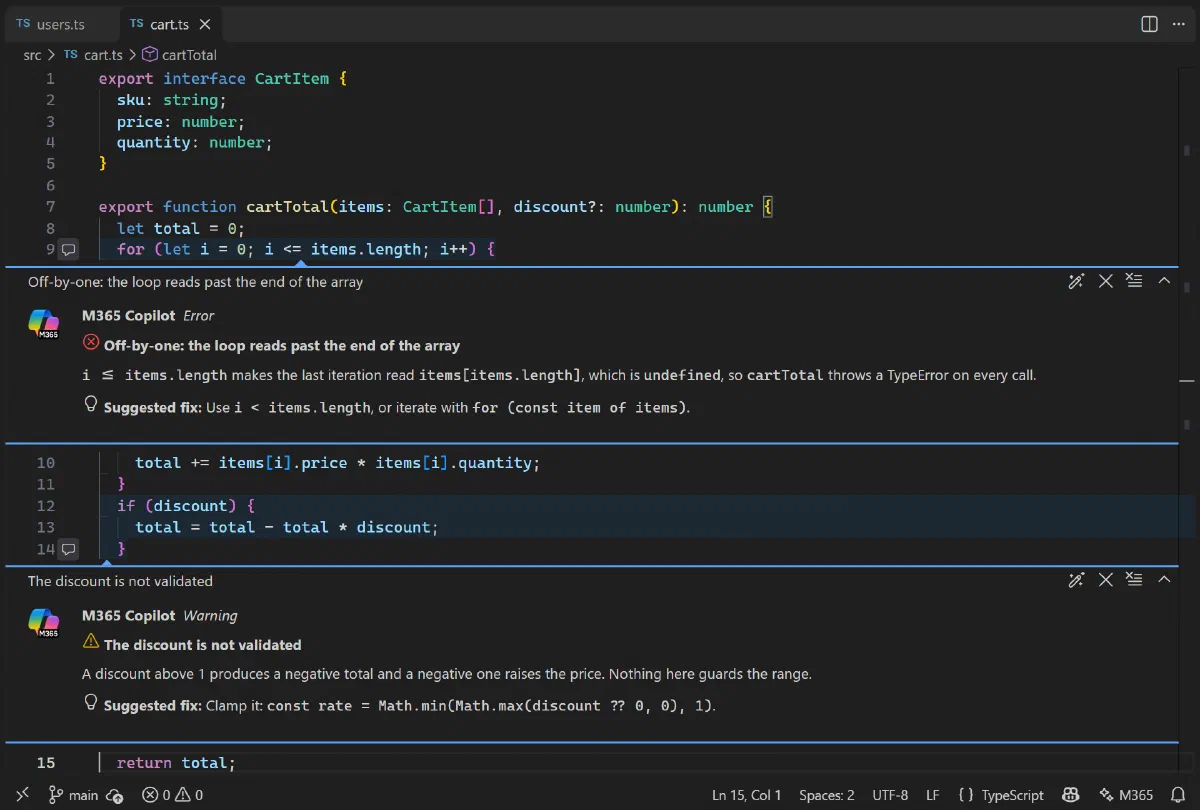
Ctrl+.) on an error: Fix with M365 Copilot fixes it in place. - Review as comments: Review code leaves its findings as comments on the lines, each with Apply fix and Dismiss. In Source Control, ☑ reviews all your uncommitted changes.
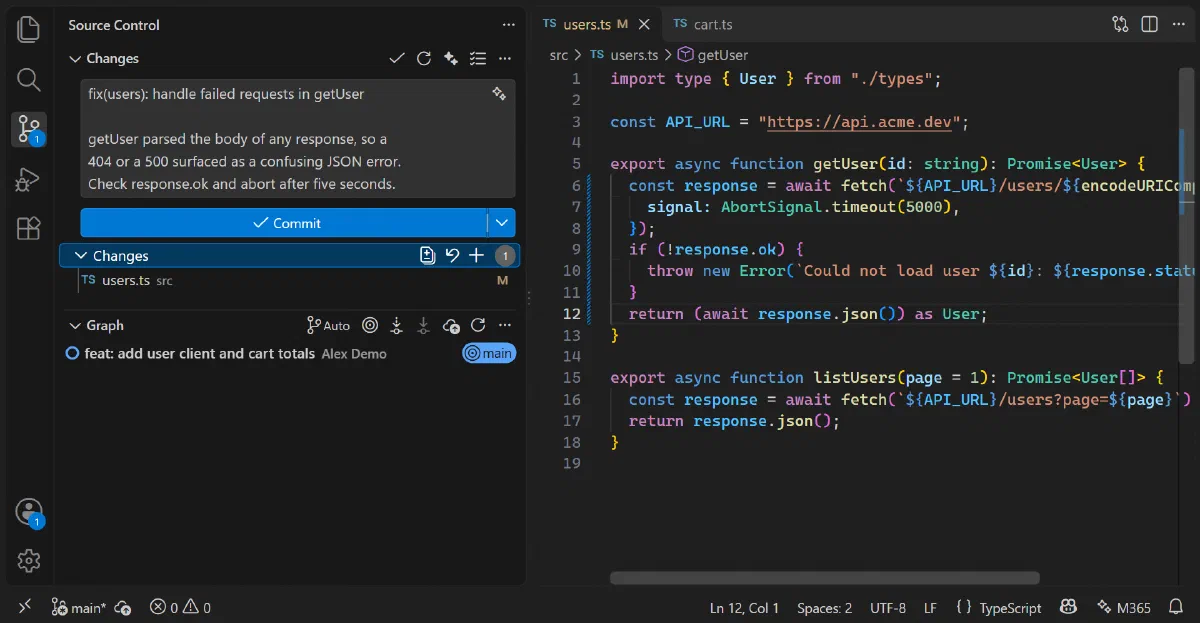
- Commit messages: the ✨ button in the Source Control title bar writes a Conventional Commits message from your diff. It never commits for you.
- Auto-commit (optional): turn it on per workspace and it commits finished work with documented messages. It never pushes, and every auto-commit has Undo.
6. No browser extension? Two alternatives
Userscript. Install Tampermonkey (or Violentmonkey), then install the userscript; it updates itself afterwards. Open Microsoft 365 Copilot and send a message. The first time, Tampermonkey asks to let the script connect to localhost: allow it, that is VS Code.
Paste the token by hand. Useful on a managed browser where you cannot install anything:
- Open Microsoft 365 Copilot, press
F12and go to the Network tab. - Type
chathubin the filter and send a message. - Right-click the request that appears → Copy → Copy URL.
- In VS Code open the command palette (
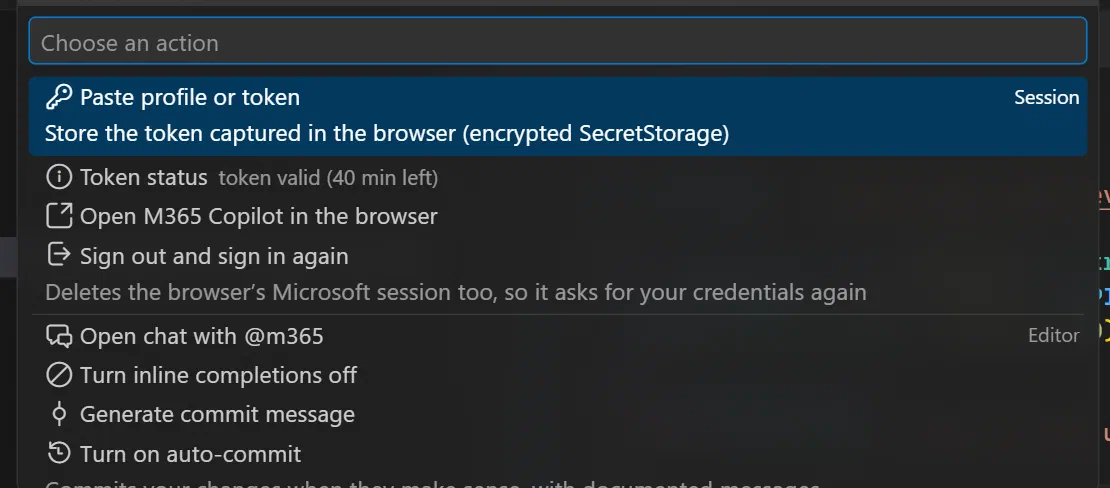
Ctrl+Shift+P), run M365 Copilot: Paste profile or token and confirm. It detects the URL in your clipboard.
Web search needs the session captured by the browser extension or the userscript; a pasted token alone does not carry it.
7. When the token expires
The token lasts about an hour. With the browser extension and a Microsoft 365 tab open somewhere, it renews by itself. If not, the status bar item shows a warning and a notification offers Paste token or Open M365 Copilot: open Microsoft 365 Copilot and send a message again.
To switch accounts, or if renewal goes wrong, use Sign out and sign in again from the M365 status bar menu. It also clears the browser’s Microsoft session, which is the only thing that makes Microsoft ask for your credentials again. It needs the browser extension.
8. Language
The extension follows VS Code’s language, English or Spanish, and the instructions sent to the model follow it too. To change it, use the status bar menu → Change language, or the m365copilot.language setting.
Common problems
- A 401 error: you pasted a bearer from another request. Copy the
chathubURL instead, as in step 6. - No M365 Copilot in the model picker: click the gear → Other models. You can always use
@m365. - A licence error: the account has no Copilot licence. It is about the account, not the model: ask your Microsoft 365 admin.
- Claude models do not answer: your admin has to enable Anthropic models.
- Still stuck: open an issue on GitHub.