1
VS Code extension
Adds the @m365 chat participant, the models, the editor actions and the commit tools.
Or paste this in VS Code (Ctrl+P):
ext install m365-copilot-vscode.m365-copilot-vscodeFree and open source
Chat with @m365, edit code in place, review your changes and write commit messages with the Microsoft 365 Copilot you already have. No API key, no dashboard.
VS Code 1.104+ · Chrome, Edge and Firefox · English and Spanish
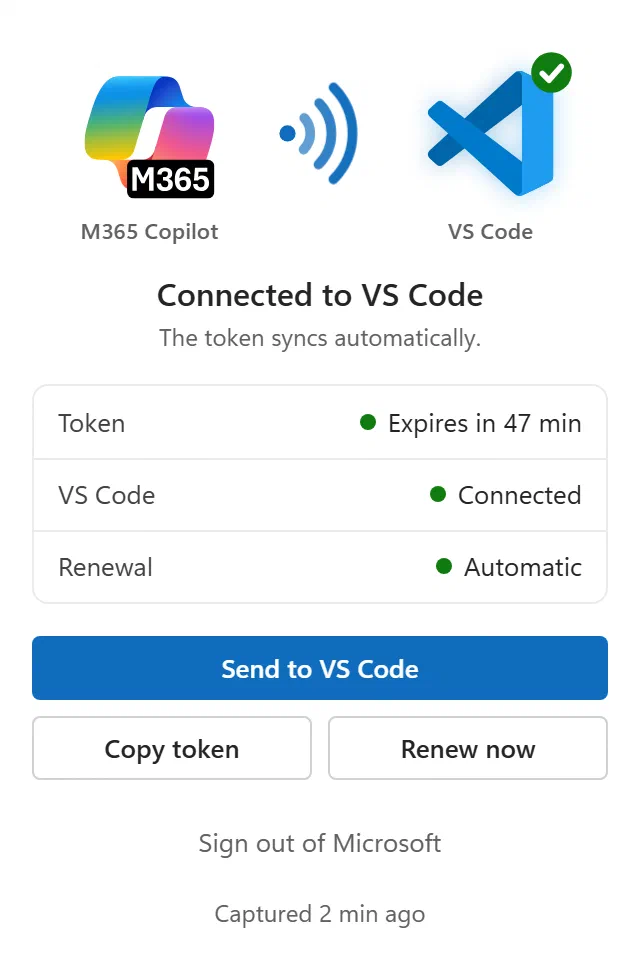
Connected to VS Code. The token syncs by itself.

The pack has two pieces: the extension for VS Code and a small browser extension that hands it your Copilot session.
Get it from the VS Marketplace, or load the .vsix from the GitHub releases.
Download it for Chrome, Edge or Firefox. It captures your Copilot session token, so there is nothing to copy and paste.
Open m365.cloud.microsoft/chat and send any message. The popup turns green and VS Code has your token. It renews itself while a Microsoft 365 tab is open.
Or pick an M365 Copilot model in the model picker. Select code and press Ctrl+Shift+Alt+I to edit it in place.
It lives in the chat, the editor and Source Control, where you already work.
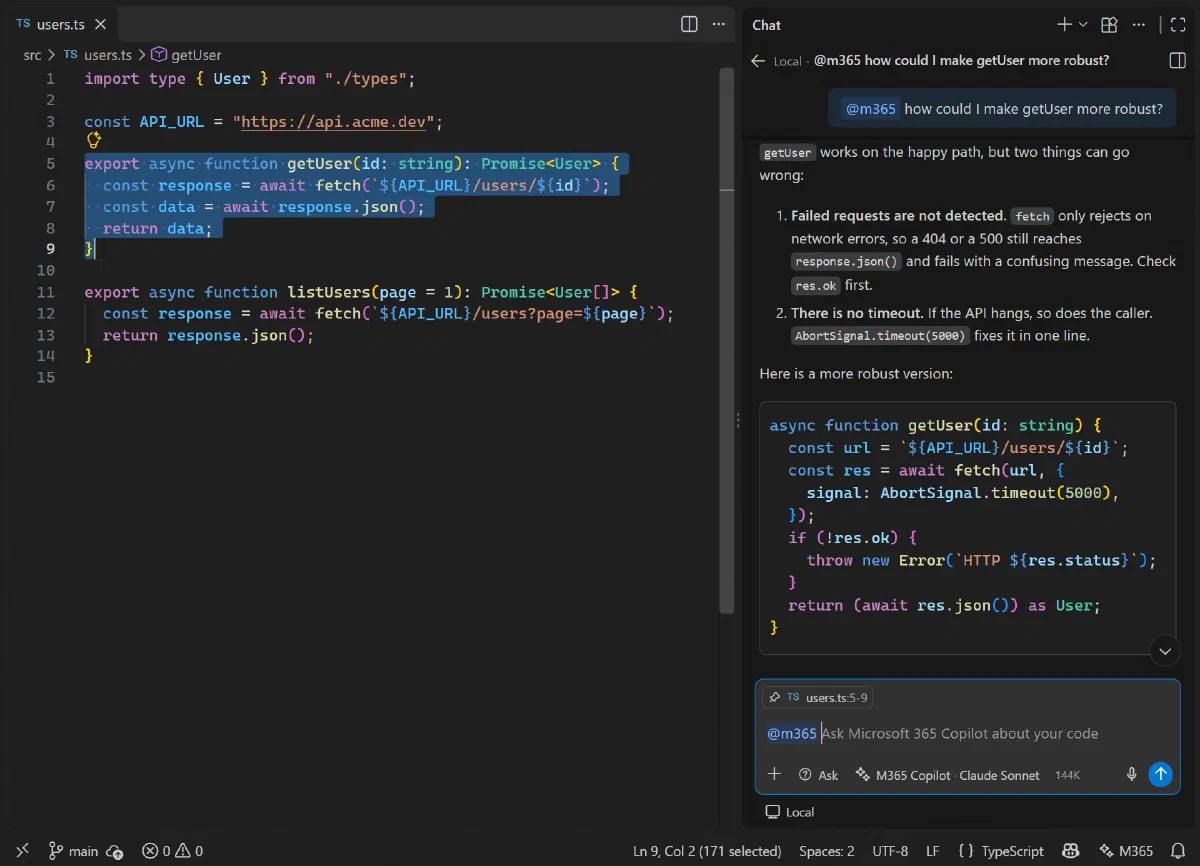
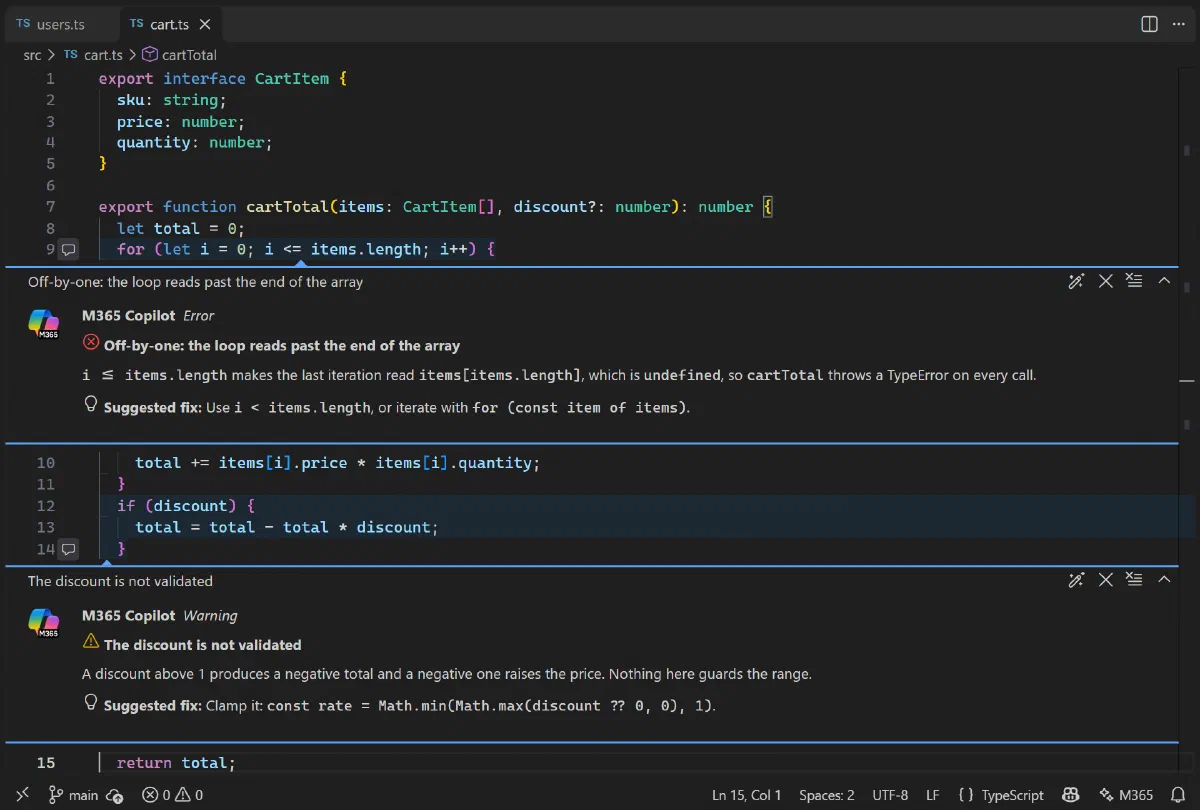
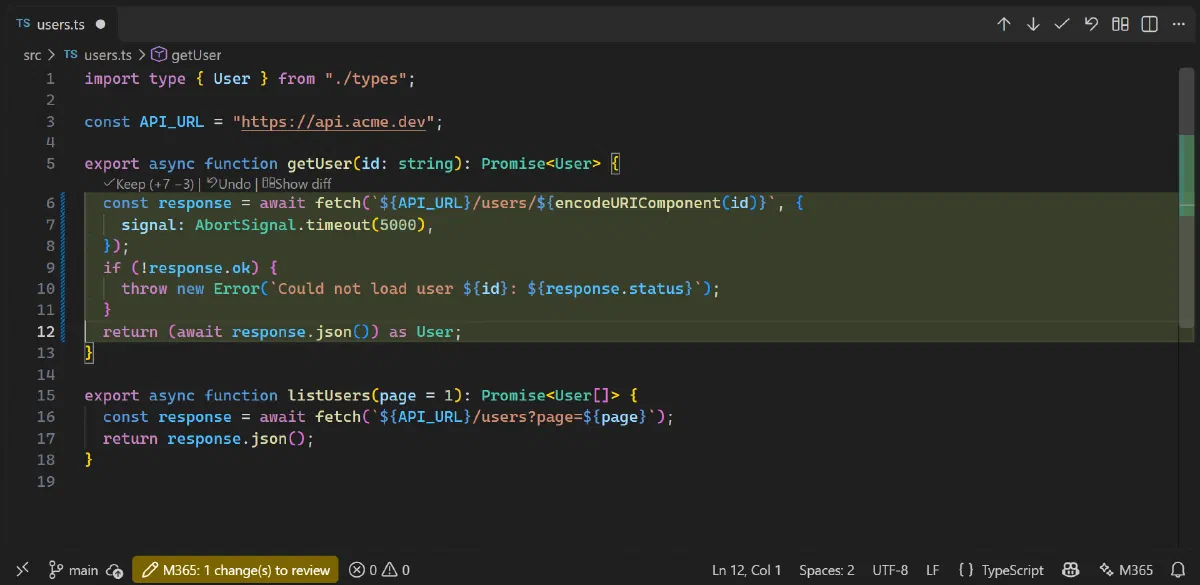
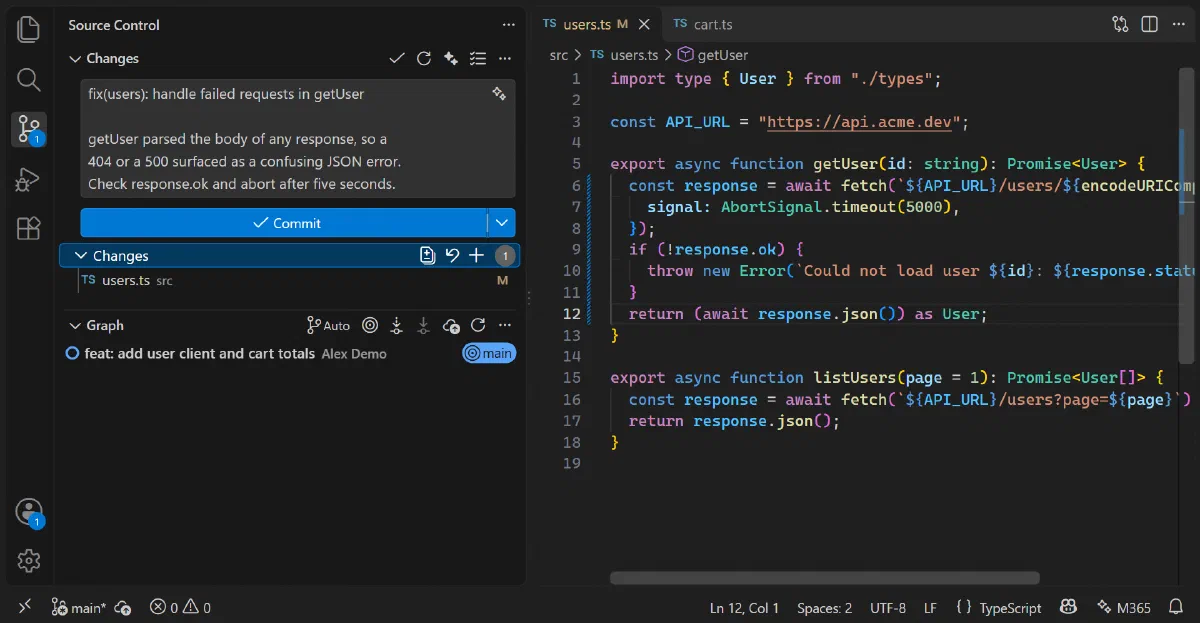
Screenshots of VS Code in English. The extension follows VS Code's language, English or Spanish.
Not just a chat box: it plugs into the places where you edit, review and commit.
Type @m365, or pick an M365 Copilot model in the model picker, next to the others you use.
Select code, press Ctrl+Shift+Alt+I and say what to change. The result lands under Keep / Undo.
Findings appear as comments on the lines, each with Apply fix and Dismiss.
A button in Source Control writes a Conventional Commits message from your diff. Optional auto-commit never pushes and has Undo.
A local index of your workspace adds the relevant code to each request. Only the code in a request leaves your machine.
Looks up current docs and error messages on the internet when it needs to. Needs the browser extension or the userscript.
Reads, searches and edits files and runs commands through VS Code’s tools. Commands and commits always ask first.
Ghost-text suggestions as you type. They take about 1–3 seconds, and you can switch them to manual.
The interface, the messages and the instructions sent to the model follow your language.
What you need: VS Code 1.104 or later · A Microsoft 365 account with a Copilot licence · Chrome, Edge or Firefox 128+ (or Tampermonkey)
Adds the @m365 chat participant, the models, the editor actions and the commit tools.
Or paste this in VS Code (Ctrl+P):
ext install m365-copilot-vscode.m365-copilot-vscodeCaptures your Copilot session token and keeps it renewed in VS Code. Recommended.
Chrome and Edge: unzip and load unpacked. Firefox: open the file.
The same capture as a Tampermonkey or Violentmonkey script, for browsers where you cannot load extensions.
No. It is an independent open source project, not affiliated with Microsoft. It talks to Microsoft 365 Copilot with your own session, so you are responsible for following Microsoft's terms.
Yes. The extension uses the Copilot of your Microsoft 365 account. Without a licence the service answers with a licence error, and the extension tells you so.
Microsoft 365 Copilot has no API key you can create. The browser extension reads the session token the web app already uses and sends it to VS Code on localhost. If you cannot install it, use the userscript, or paste the token by hand.
VS Code keeps it in its encrypted SecretStorage, on your machine, and only sends it to Microsoft endpoints. The local server that receives it from the browser only accepts the Microsoft 365 and Office origins and the browser extension.
The extension is free and open source. It uses your existing Microsoft 365 Copilot plan. Inline completions make one request per suggestion, so switch them to manual if you want less usage.
It lasts about an hour. With the browser extension and a Microsoft 365 tab open it renews by itself. Otherwise the status bar tells you: open M365 Copilot and send a message, or paste a new token.
Not today. It is built for Visual Studio Code, and a version for Visual Studio would need a different approach.

A star on GitHub is free, takes two seconds and helps other developers find the project.
Thank you: it is what keeps the project going.
Install both pieces, send one message in Microsoft 365 Copilot and start chatting.